Offline OCR with Local Mode
Use Tesseract.js for free, offline text extraction without consuming any credits.
Setup Instructions
-
1
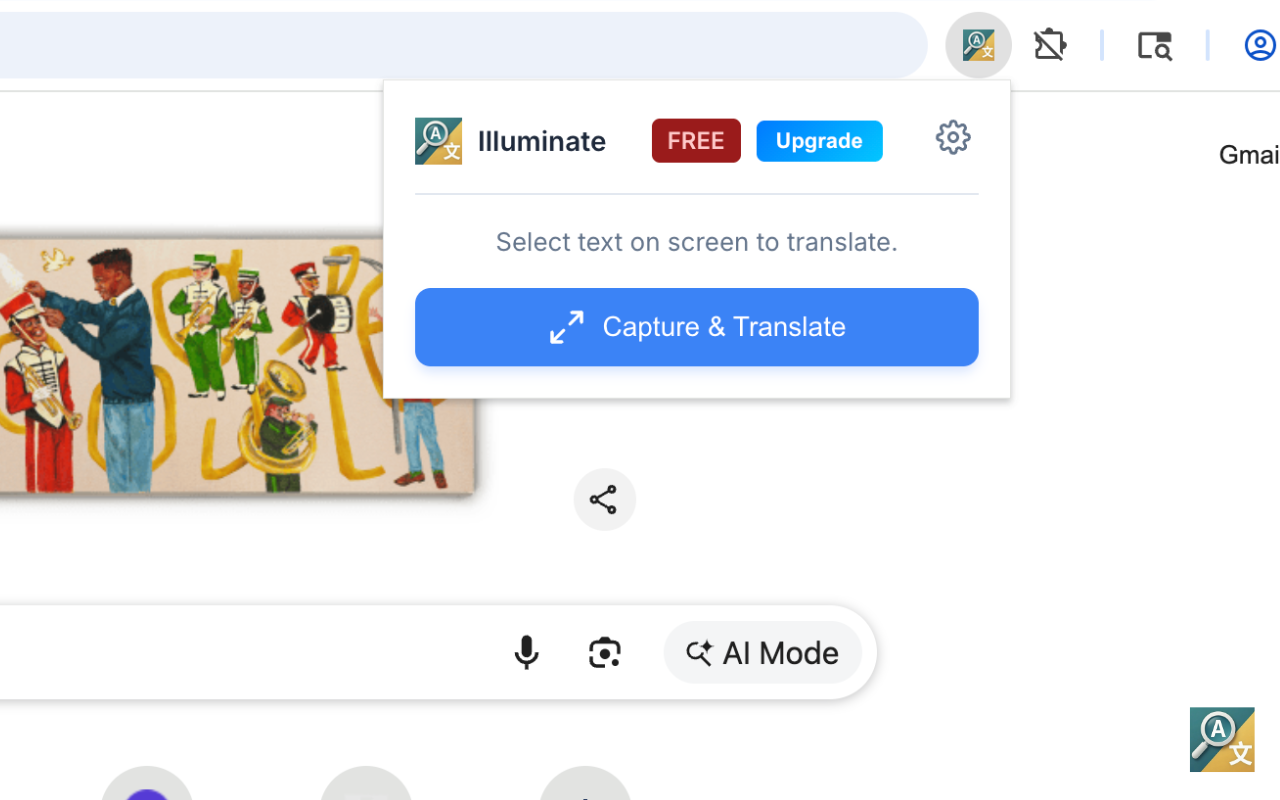
Open Extension Popup
Click the Illuminate extension icon in your browser toolbar. The popup shows a "Capture & Translate" button and a gear icon for settings.
-
2
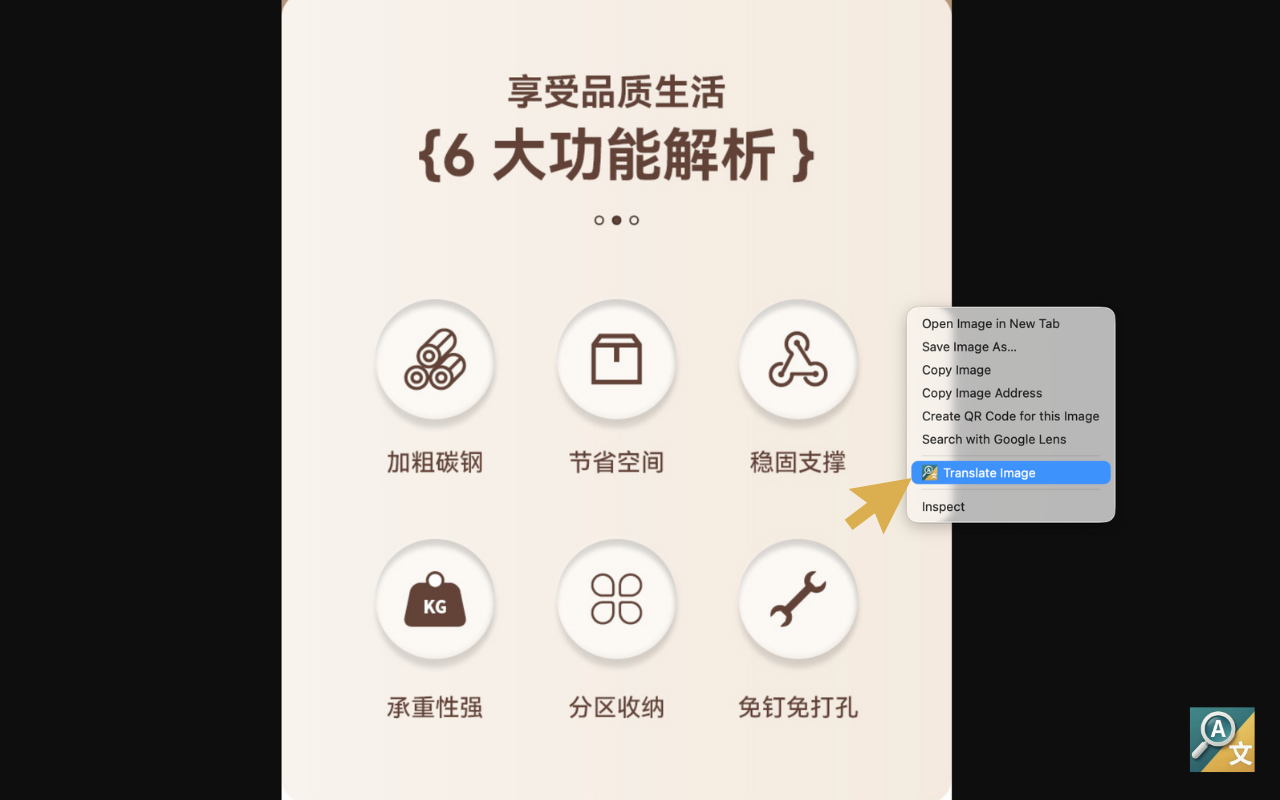
Open Context Menu
Right-click on any image you want to extract text from and select "Translate Image".
-
3
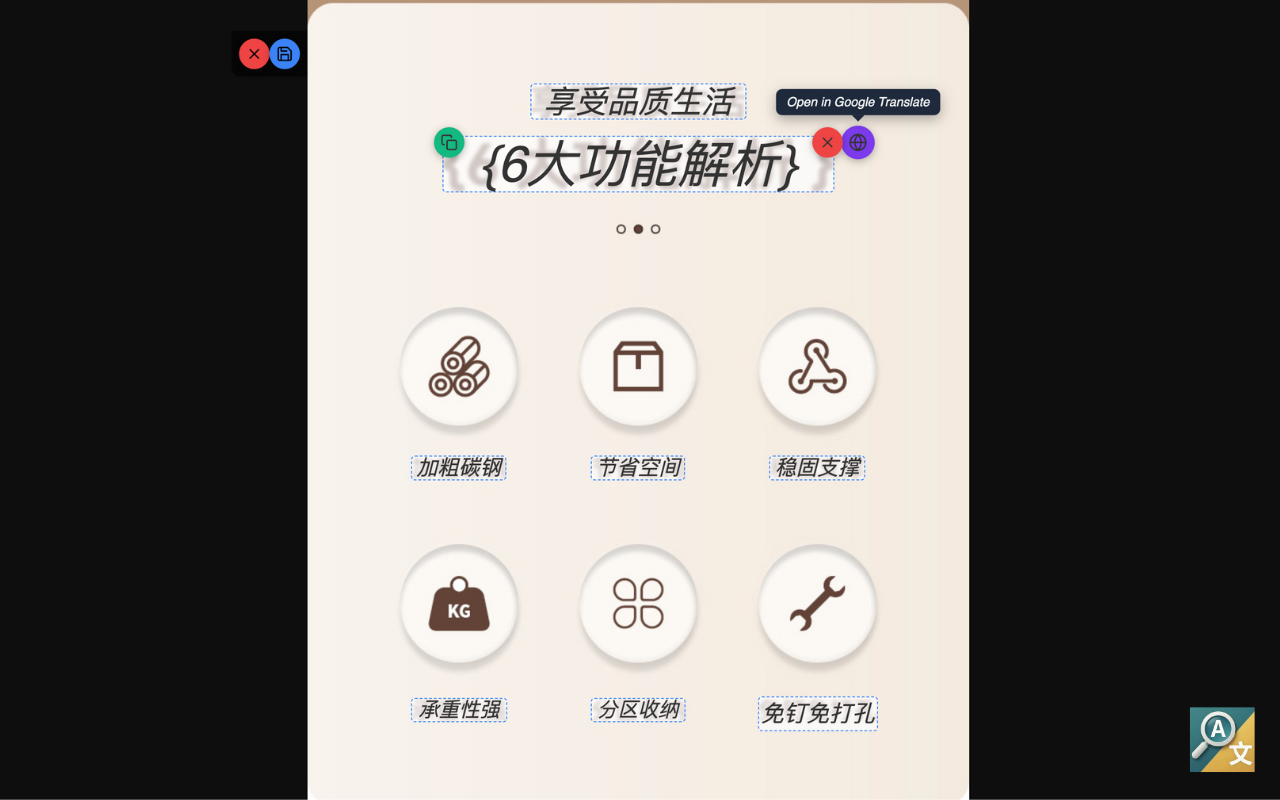
View Extracted Text
Text is extracted and displayed as overlays on the original image. Hover over any overlay to reveal a Copy button or option to open in Google Translate.
How It Works
Browser-Based Processing
Tesseract.js runs entirely in your browser using WebAssembly. No data is sent to any server.
Works Offline
Once loaded, Local Mode works without an internet connection. Perfect for offline use.
Free Forever
No credits required. Use local OCR as much as you want at no cost.
Text Extraction
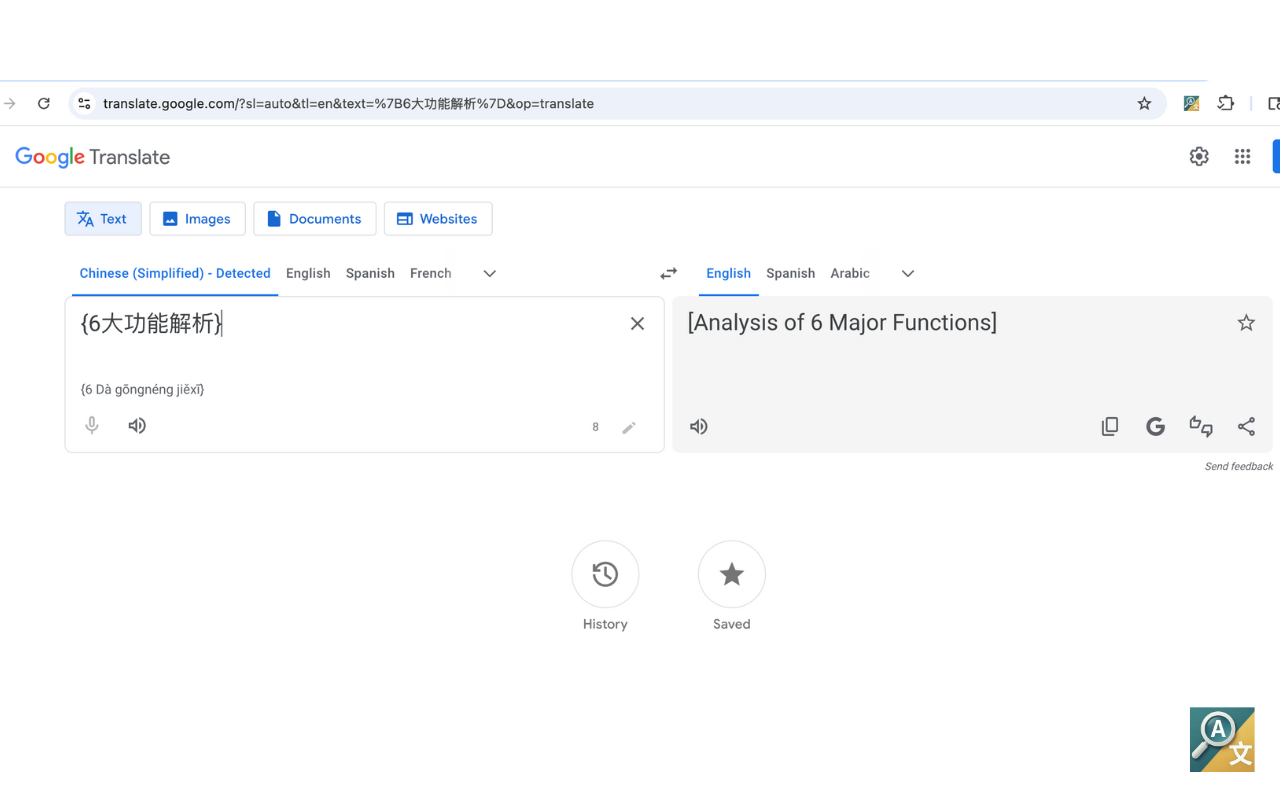
Extract text from any image or screen capture. Translations can be opened in Google Translate.
Get Translations
Since Local Mode extracts text without translation, you can easily translate using Google Translate.
Pro Feature
Upgrade to Pro for in-app translations with seamless overlay. No need to switch to Google Translate.
Limitations
Lower Accuracy
May have lower accuracy for complex layouts, tables, or dense paragraphs compared to cloud OCR.
No Translation
Local Mode extracts text only. For in-app translations, upgrade to Pro with cloud processing.
Stylized Fonts
May struggle with highly stylized, decorative, or handwriting fonts.
Tips for Best Results
Good Lighting
Ensure your screenshots have clear, well-lit text without shadows.
High Contrast
Use screenshots with dark text on light backgrounds for best results.
Larger Text
Larger text sizes are easier to recognize accurately.
Simple Backgrounds
Avoid complex backgrounds that could interfere with text recognition.