Keyboard Shortcut Setup
Learn how to set up and customize the keyboard shortcut for the Capture & Translate feature in the Illuminate Chrome Extension.
Quick Setup
The default keyboard shortcut to activate Capture Mode is:
Why This Shortcut?
Ctrl+Shift+S (Windows/Linux) or ⌘⇧S (macOS) is chosen because it's memorable, doesn't conflict with common browser shortcuts, and is easy to press while selecting an area on your screen.
Step-by-Step Instructions
-
1
Open Chrome Extensions Shortcuts
In your Chrome browser, click the address bar and type
chrome://extensions/shortcuts, then press Enter.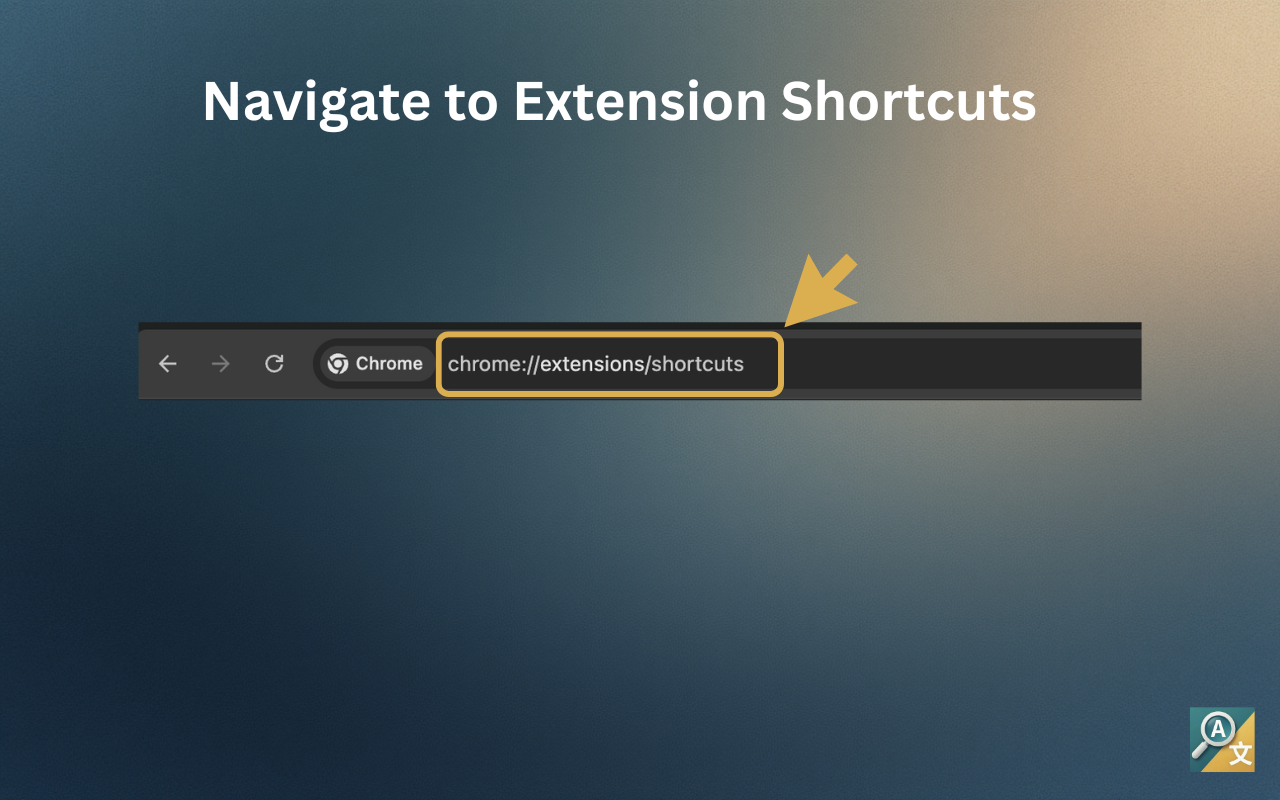
-
2
Find Illuminate Extension
Scroll through the list of installed extensions. Look for "Illuminate" in the list. You can also use your browser's find function (Ctrl+F or Cmd+F) to search for it.
-
3
Click the Edit Button
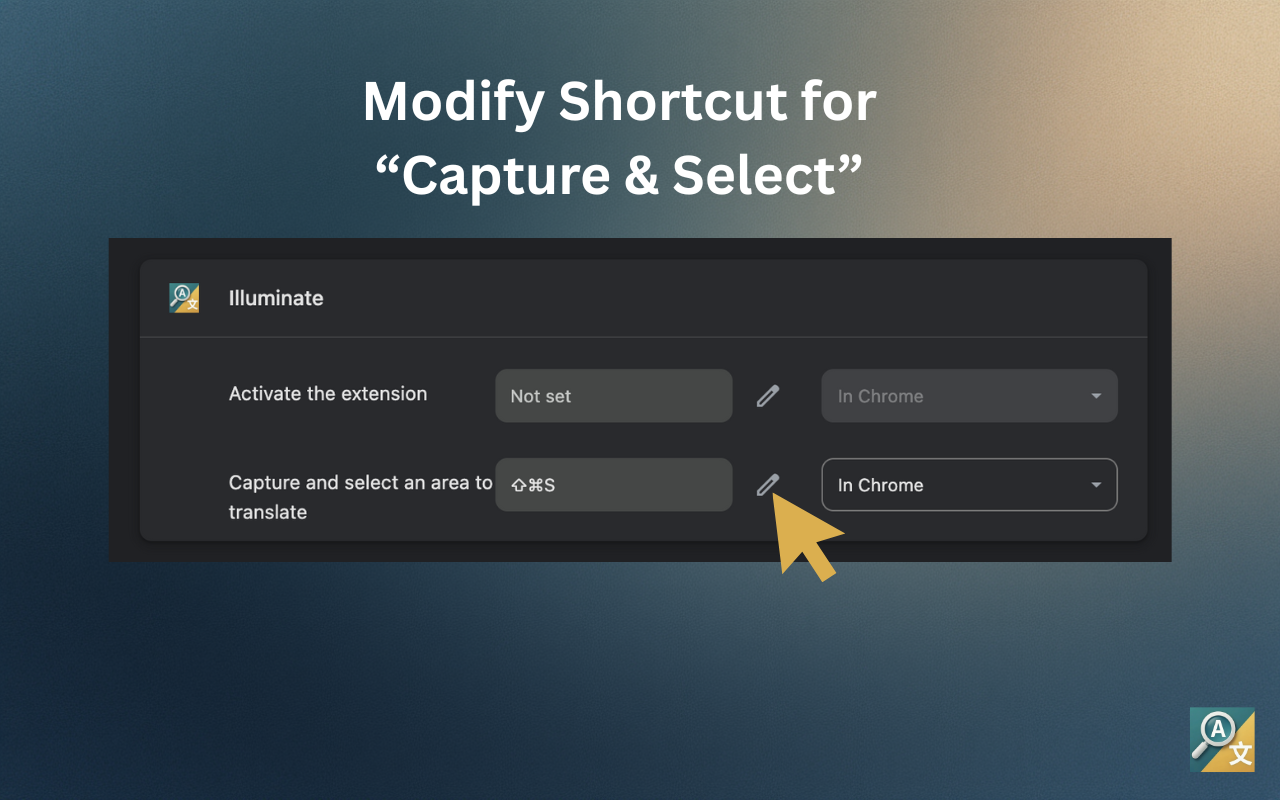
Locate the "Capture and select an area to translate" action in the Illuminate section. Click the pencil icon to edit the shortcut.
-
4
Press Your Desired Keys
Click in the shortcut field and press Ctrl + Shift + S (Windows/Linux) or ⌘ ⇧ S (macOS) on your keyboard. The keys will appear in the field.
-
5
Save the Shortcut
Click anywhere outside the field or press Enter to save your new keyboard shortcut.
Shortcut Conflicts
If Chrome shows a warning that the shortcut is already in use, you'll need to choose a different combination or remove the conflicting shortcut first.
Test Your Shortcut
Now that you've set up the shortcut, let's test it:
Open Any Webpage
Navigate to any website with text or images you'd like to translate.
Press the Shortcut
Press Ctrl + Shift + S (Windows/Linux) or ⌘ ⇧ S (macOS) to activate capture mode.
Select an Area
Click and drag to select any area on your screen containing text.
Get Translation
Release the mouse to extract and translate the text from your selection.
macOS Note
On macOS, use the ⌘ (Command) key instead of Ctrl. The shortcut will display as ⌘⇧S in Chrome's shortcuts settings, but the functionality is the same.
Customizing the Shortcut
You can customize the shortcut to any key combination you prefer:
Single Keys
Use a single function key (F1-F12) for quick access.
Modifier Combinations
Combine ⌘, Option (Alt), or ⇧ with any letter key.
Windows/Linux
Use Ctrl instead of ⌘ on Windows and Linux systems.
Multiple Shortcuts
Set different shortcuts for different extension features.
Troubleshooting
Shortcut Not Working
If the shortcut doesn't respond, try these steps:
- Make sure the Chrome window is in focus
- Check that the extension is enabled in chrome://extensions
- Try a different shortcut combination
- Restart Chrome and try again
Conflict with Other Extensions
If another extension is using the same shortcut, you can either:
- Remove or disable the conflicting extension
- Change the other extension's shortcut first
- Choose a different combination for Illuminate